Add events to your calendar
- Subscribe (recommended): every event you sign up for appears in your calendar and stays up to date.
- Add one event: a one-off copy that doesn’t update.
Subscribe
Section titled “Subscribe”-
Go to User CP > Calendar Subscription.
-
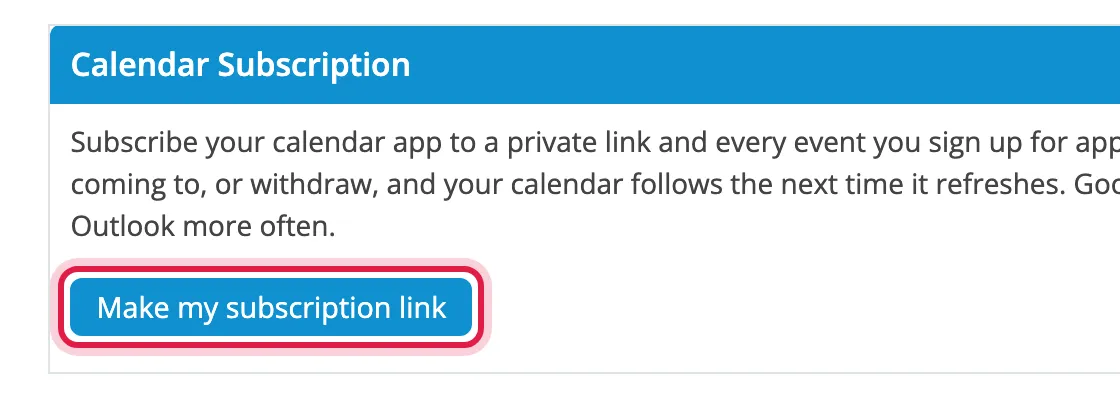
Click Make my subscription link.
-
Add it to your calendar:
Click Subscribe in my calendar app and confirm in your calendar app.
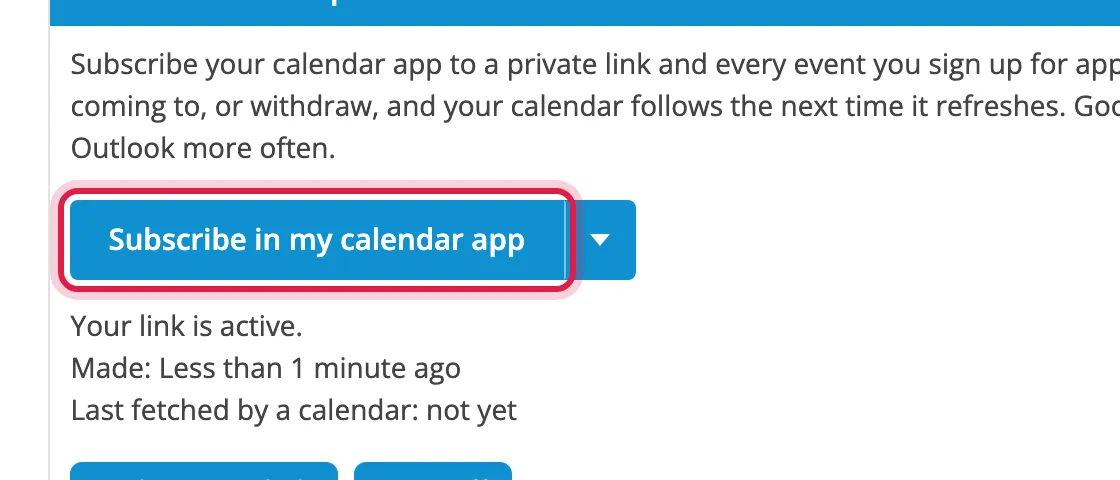
- Click the arrow beside Subscribe in my calendar app, choose Copy calendar URL, and copy the link.
- In Google Calendar on a computer, click + beside Other calendars > From URL.
- Paste the link and click Add calendar.
Entries show your role, such as Trooping: Supanova Sydney. Changes can take up to a day to appear in Google Calendar; Apple and Outlook update more often.
Keep your link private
Section titled “Keep your link private”Anyone with the link can see your signups. If it’s been shared, click Make a new link on the Calendar Subscription page: the old one stops working. Click Turn off to stop the subscription.
Add one event
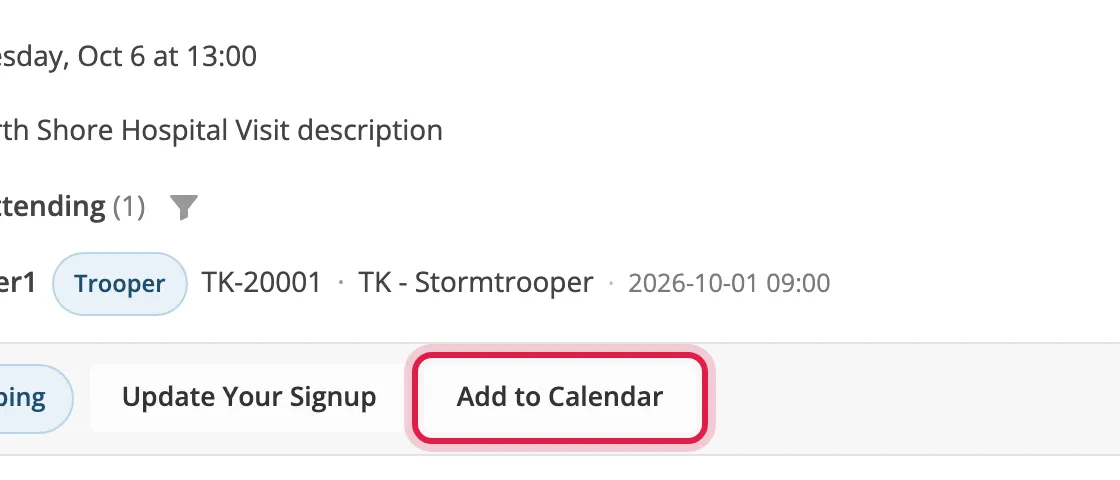
Section titled “Add one event”On an event you’ve signed up for, click Add to Calendar and open the downloaded file.